Start Your Symphony Journey
Purpose: This is your complete roadmap for using Symphony. It shows you the steps to register, gain active access, and find the correct guides for your daily work.
Table of Contents
1. Confirm Your Prerequisites and Portal
2. Register, Authenticate, and Activate
Before You Start
Make sure you know the following crucial facts and have the correct items ready:
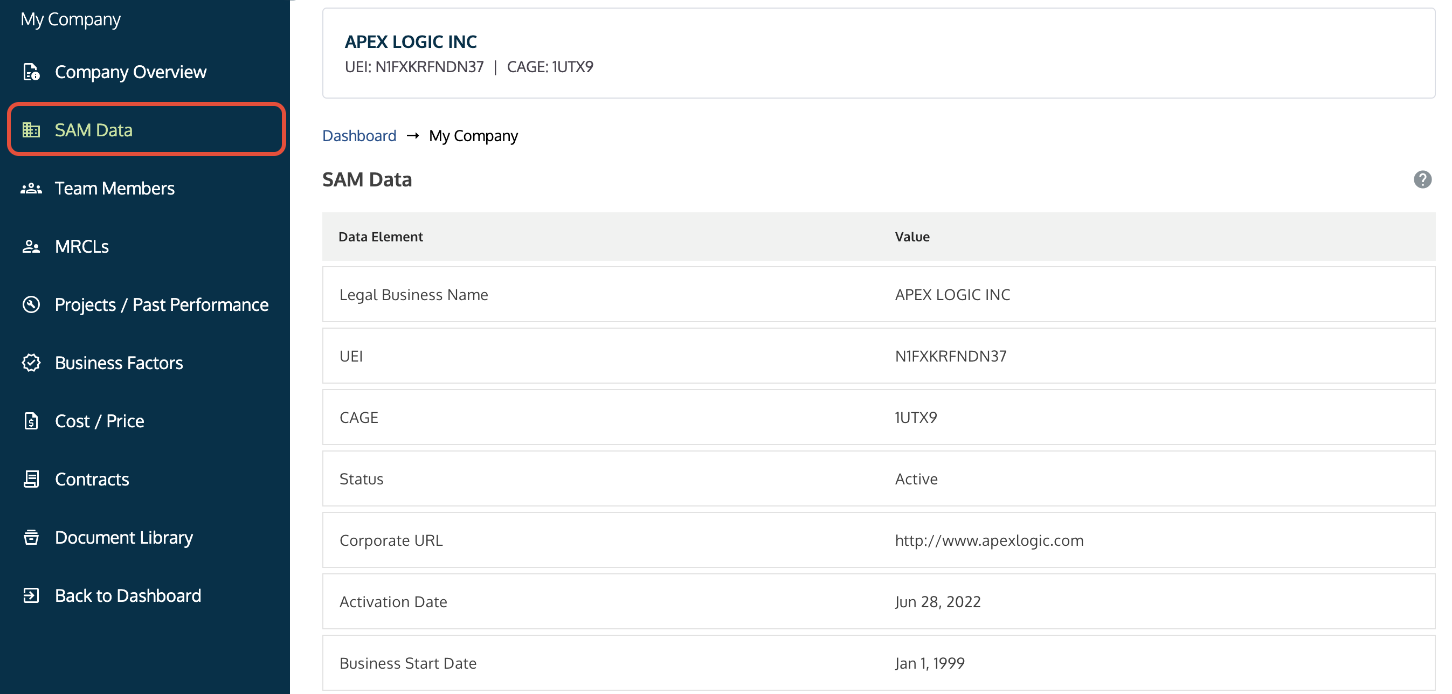
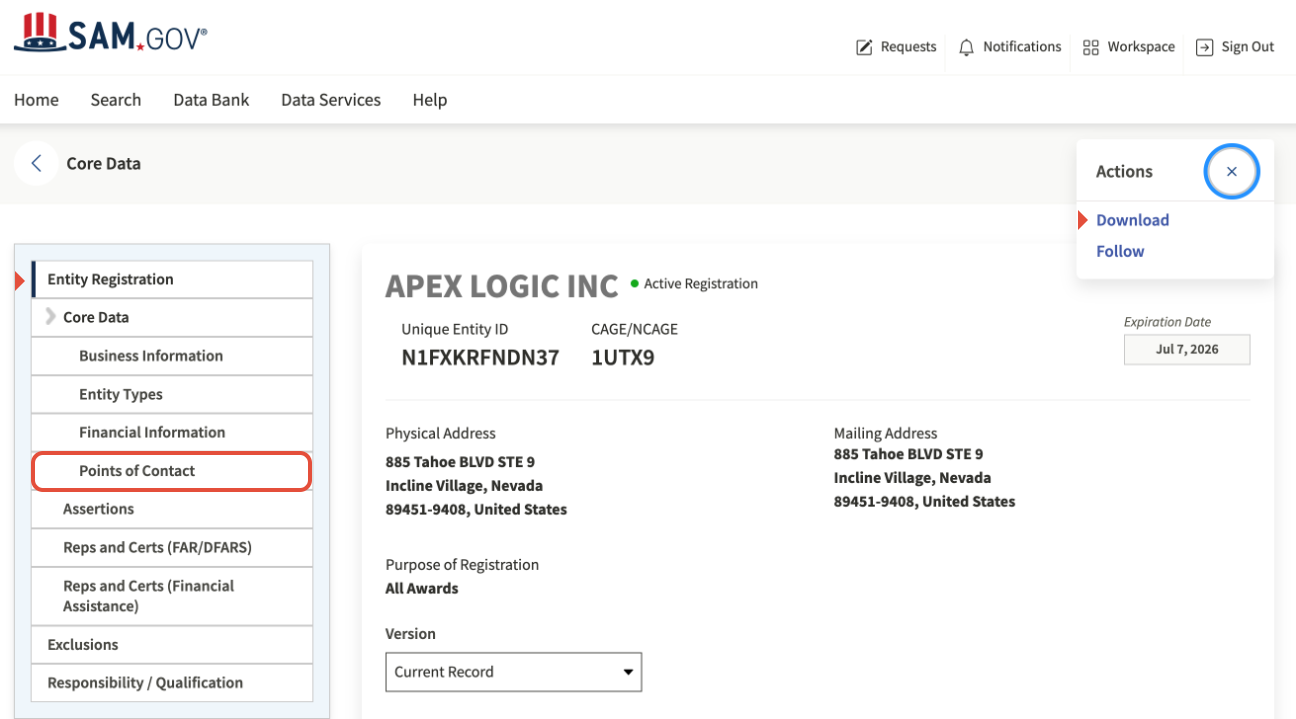
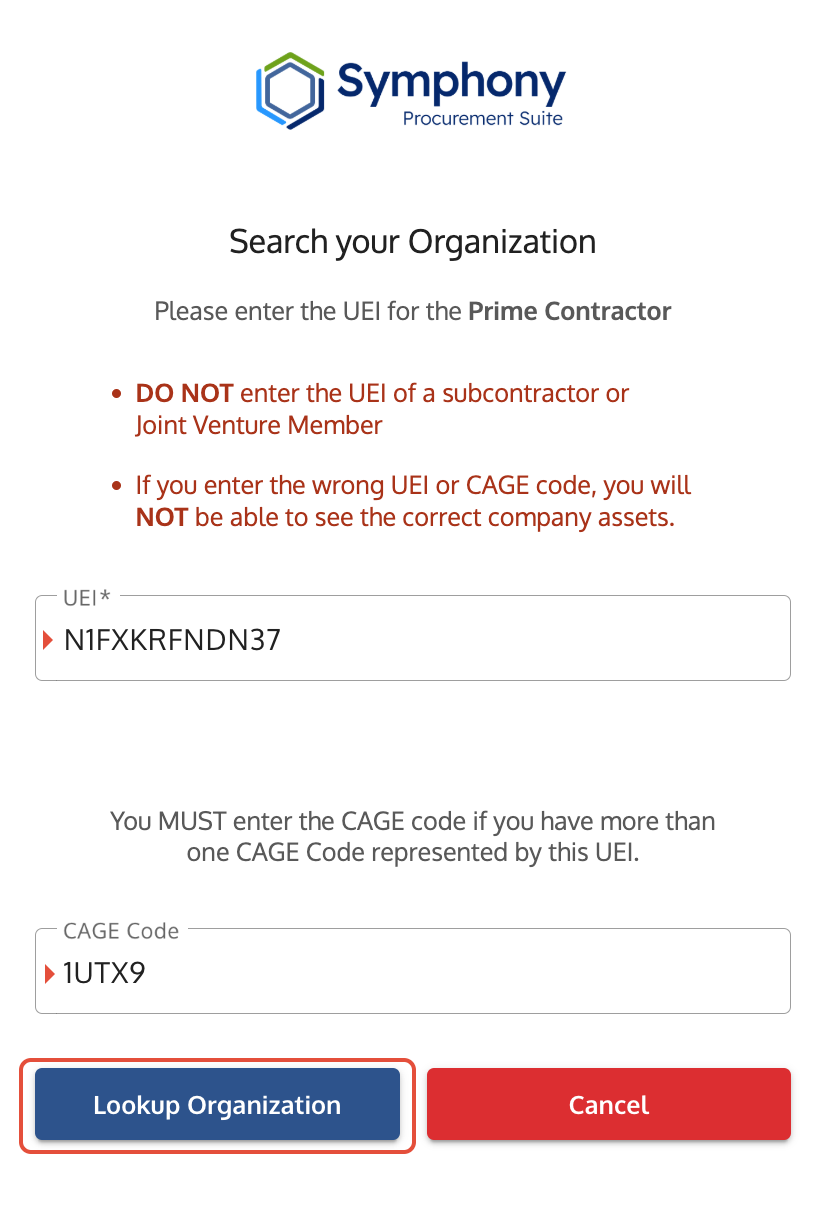
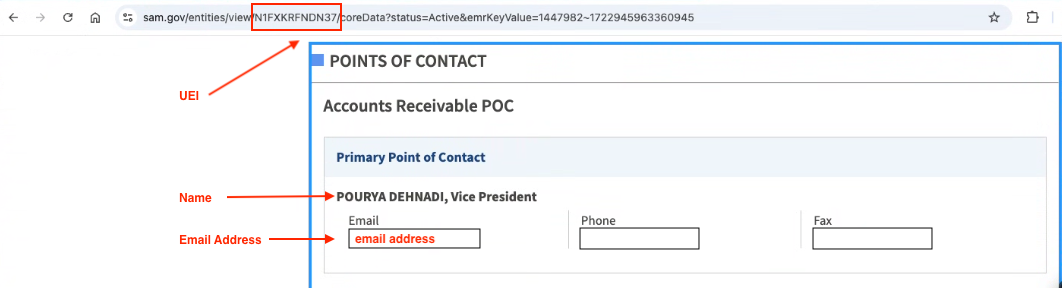
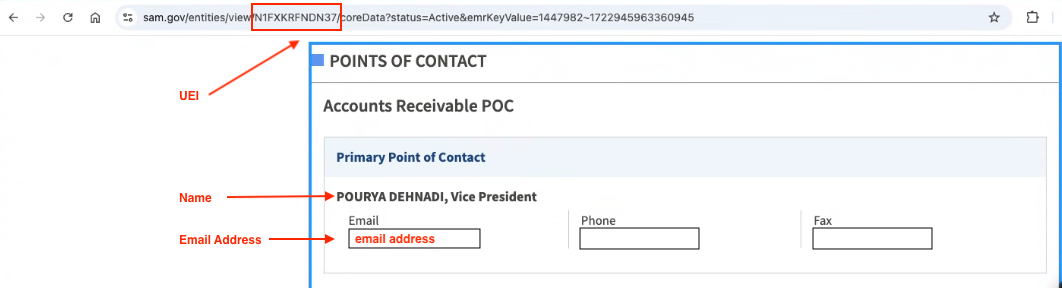
- SAM Data: You must have an active SAM.gov record. Symphony uses this data to validate your UEI, CAGE code, and Points of Contact.
- Correct Website: You must register and sign in at the exact website URL for your specific contract vehicle (e.g., Polaris, OASIS+).
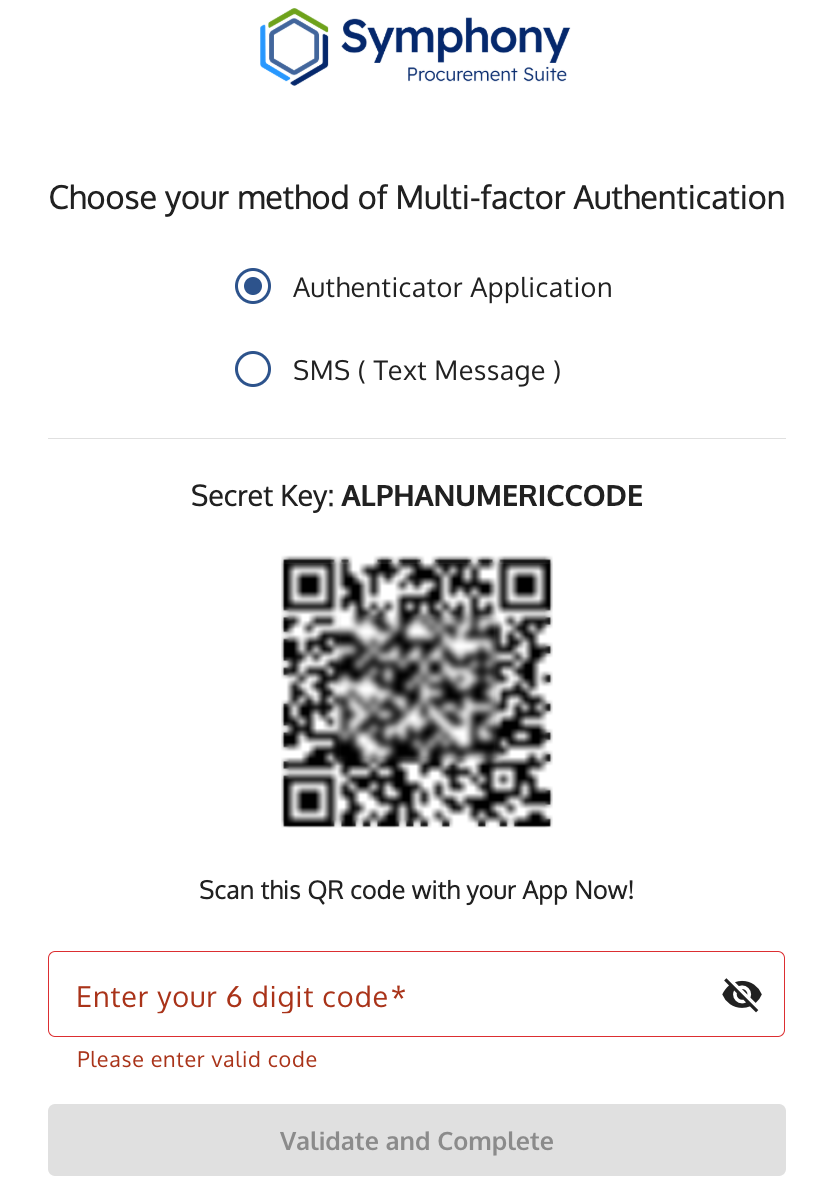
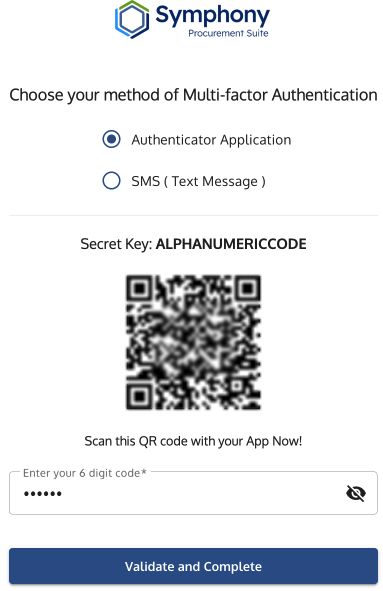
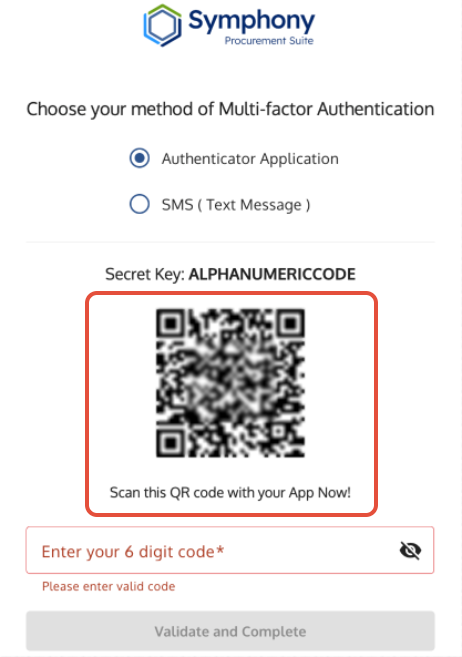
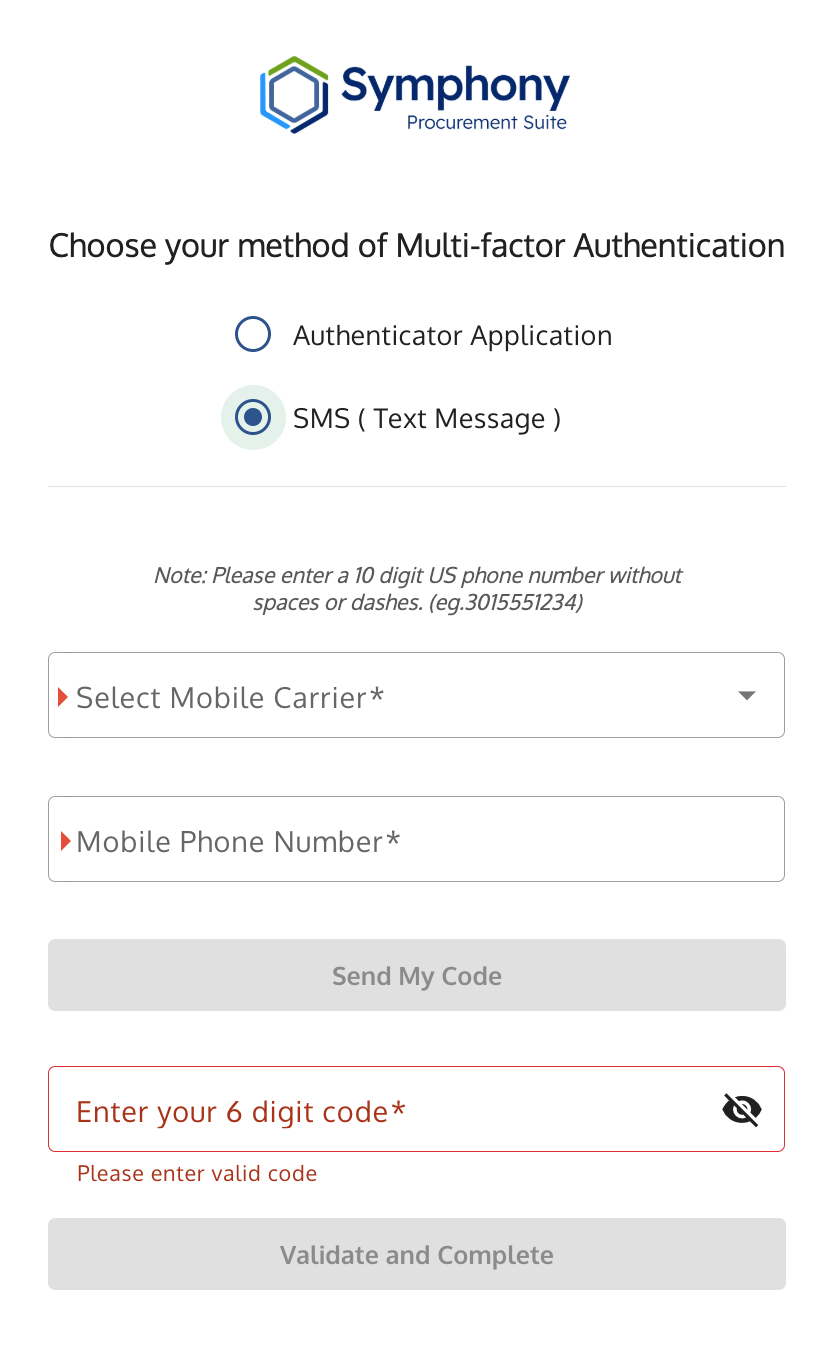
- MFA Readiness: You will need an Authenticator App or a cell phone for Multi-Factor Authentication (MFA) setup.
Steps
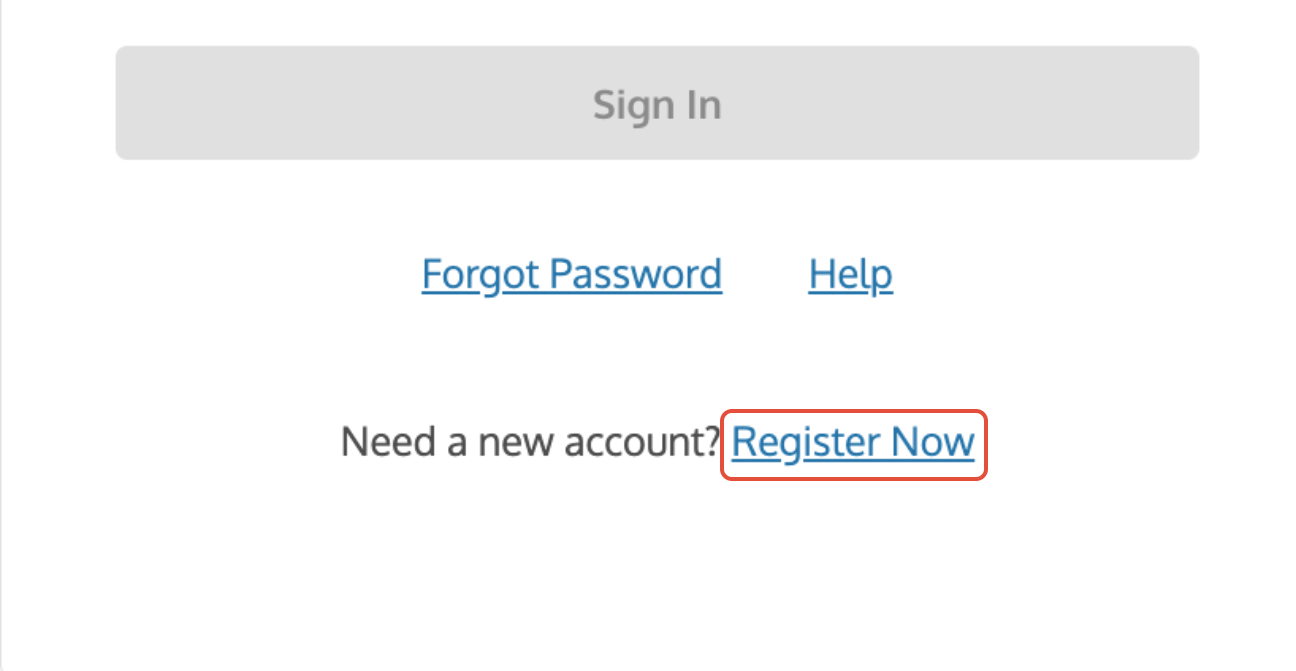
1. Confirm Your Prerequisites and Portal
The first step is verifying your company data and finding the correct portal.
- Check the data elements your organization needs for your account.
- Reference: Understand Your SAM and Symphony Access
- Locate the correct website URL for your solicitation or contract vehicle.
- Review your role's specific requirements (e.g., unique Alliant 3 rules or portal distinction).
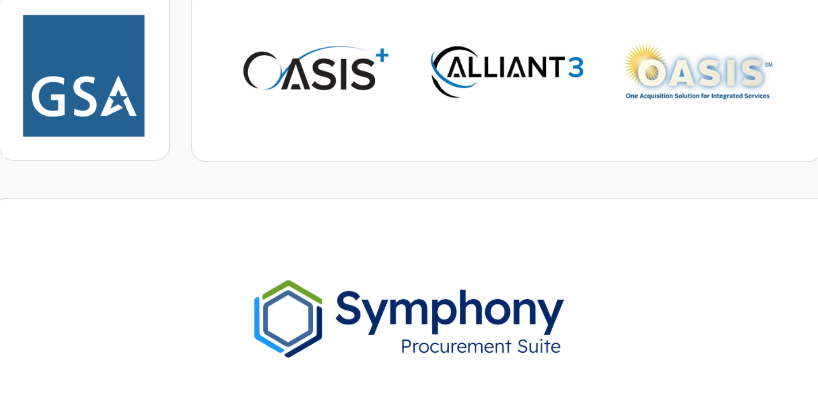
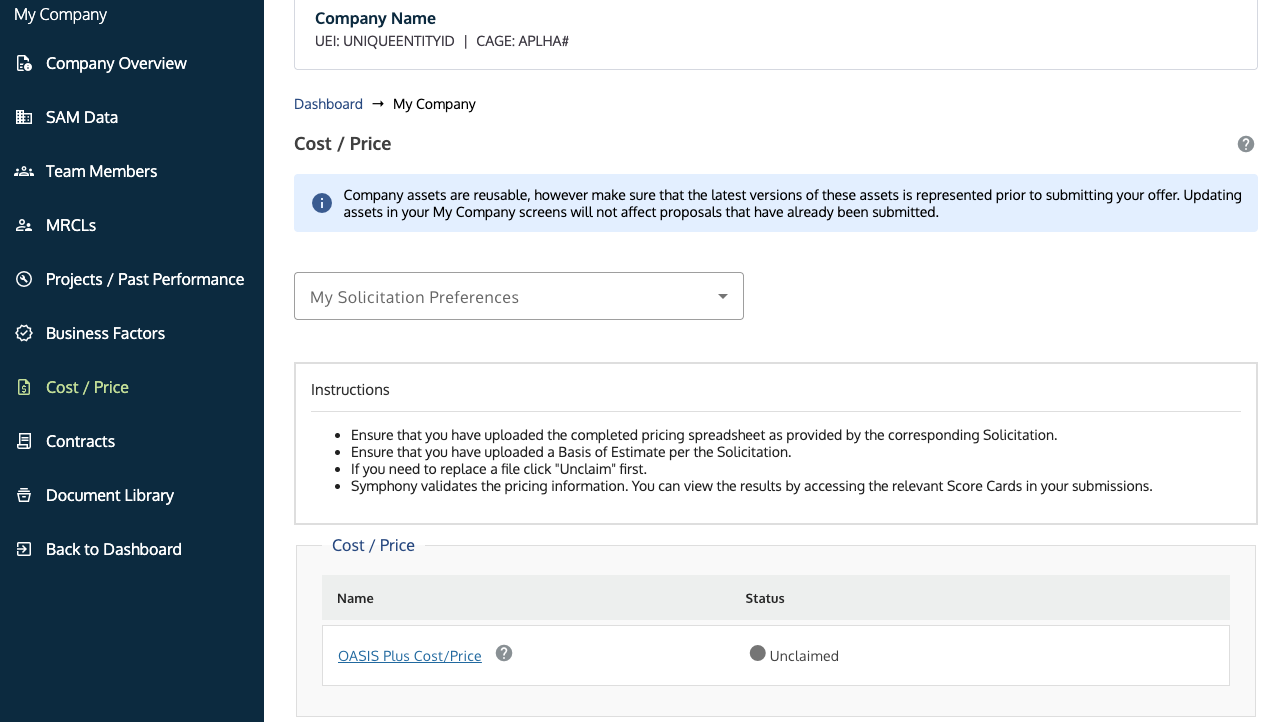
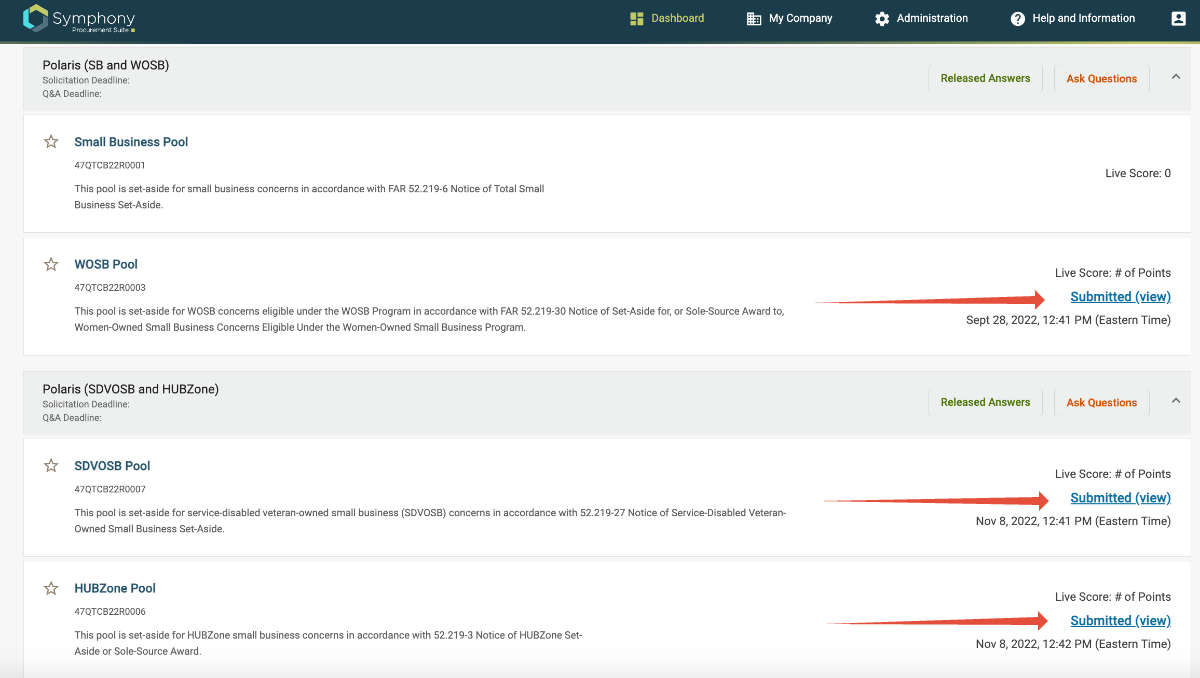
The Symphony home page with contract vehicle logos, where users identify the portal.
2. Register, Authenticate, and Activate
After finding your portal, follow these steps to create your account and gain full access.
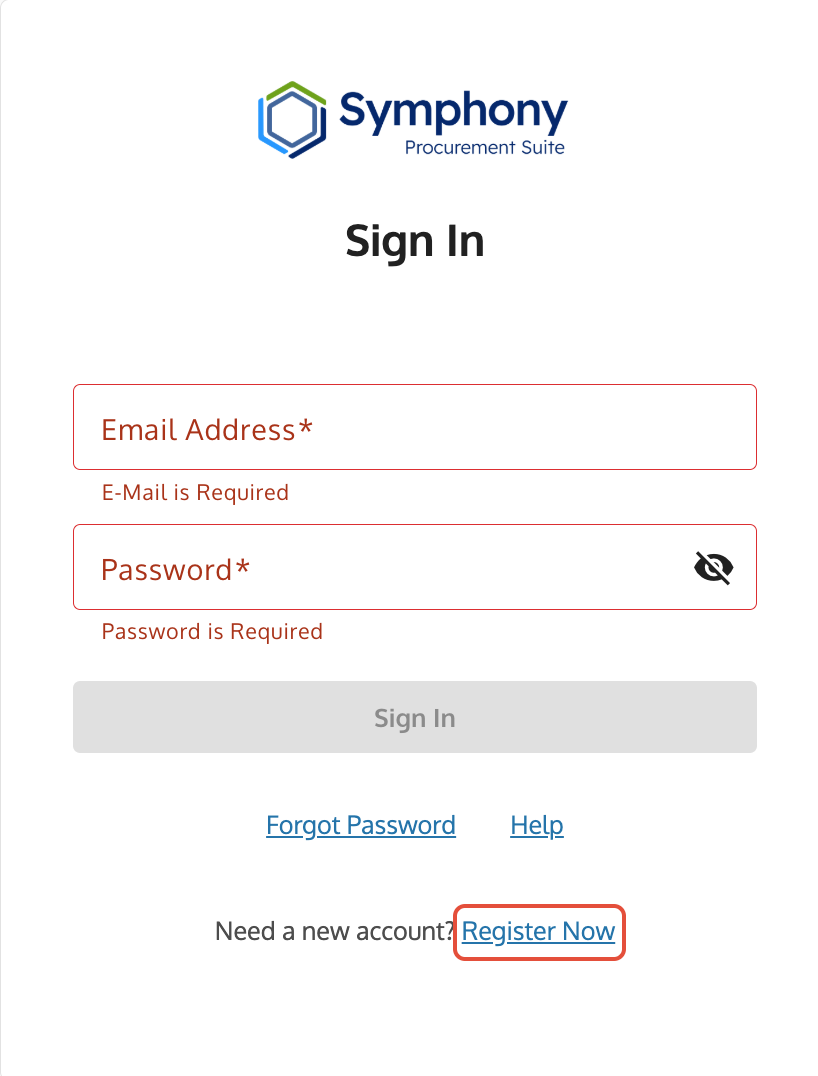
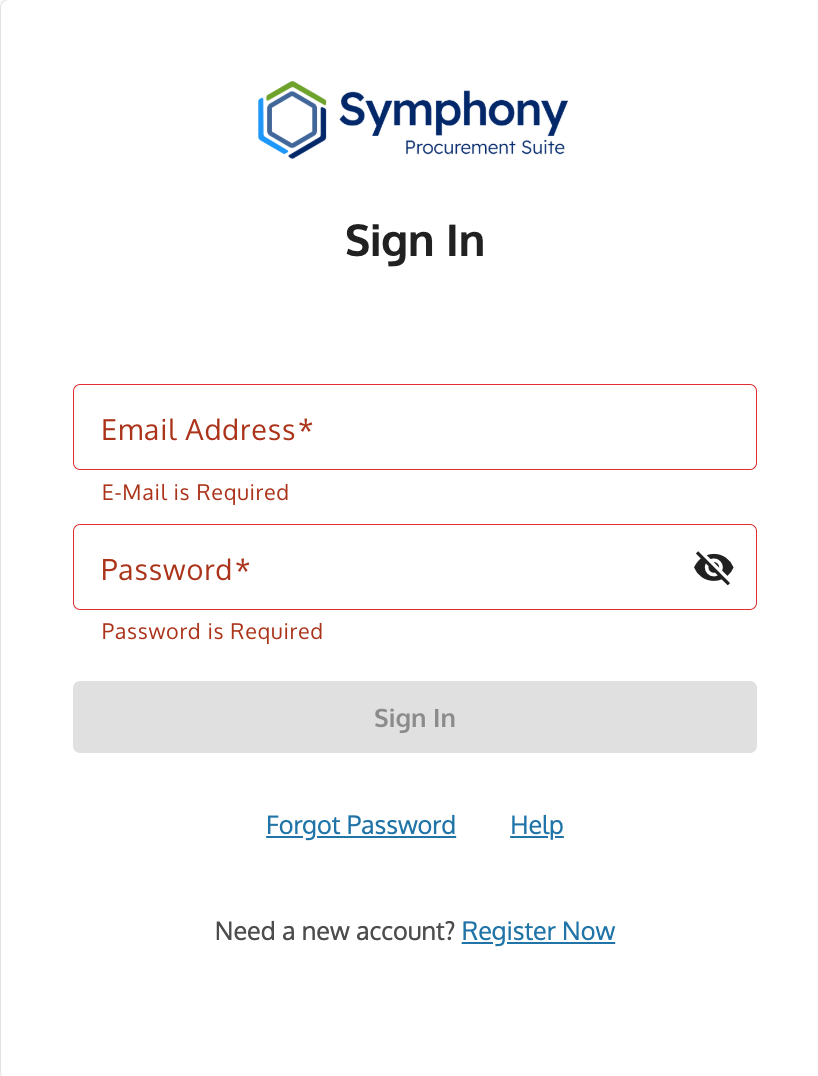
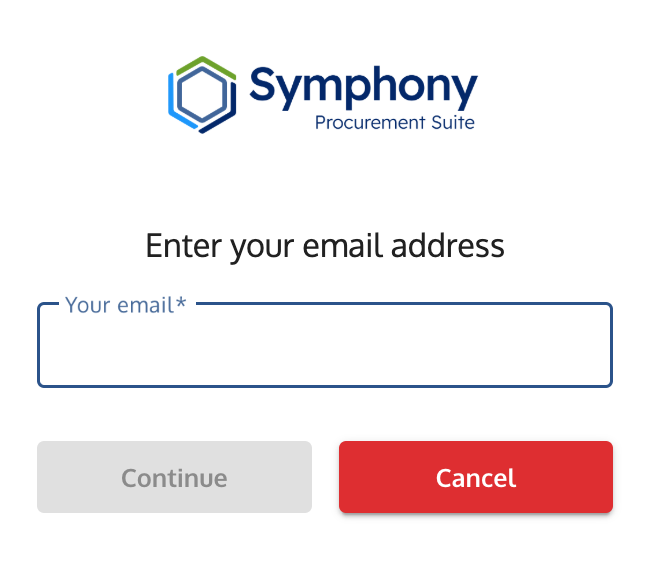
- Complete the registration process based on your organizational role.
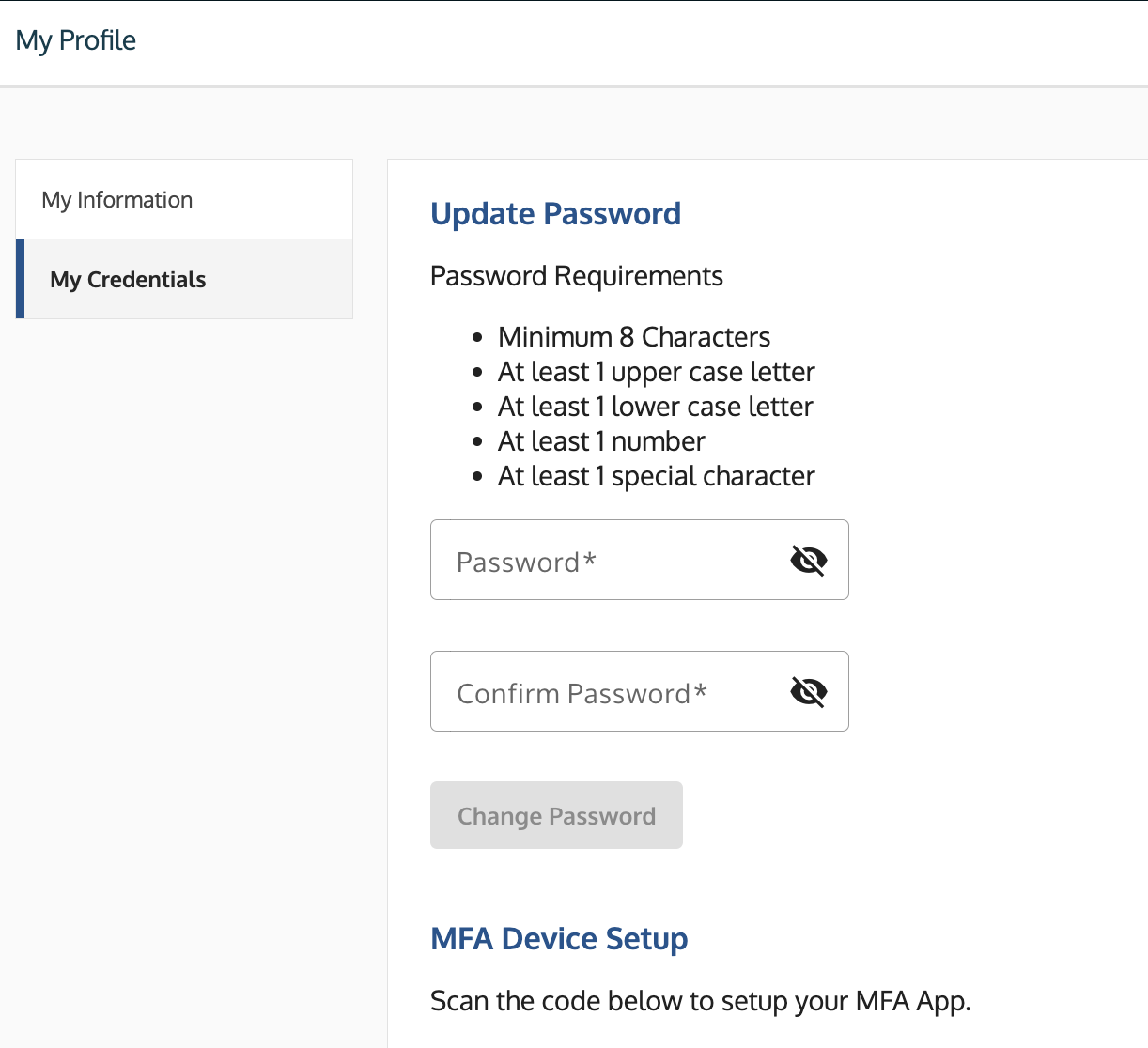
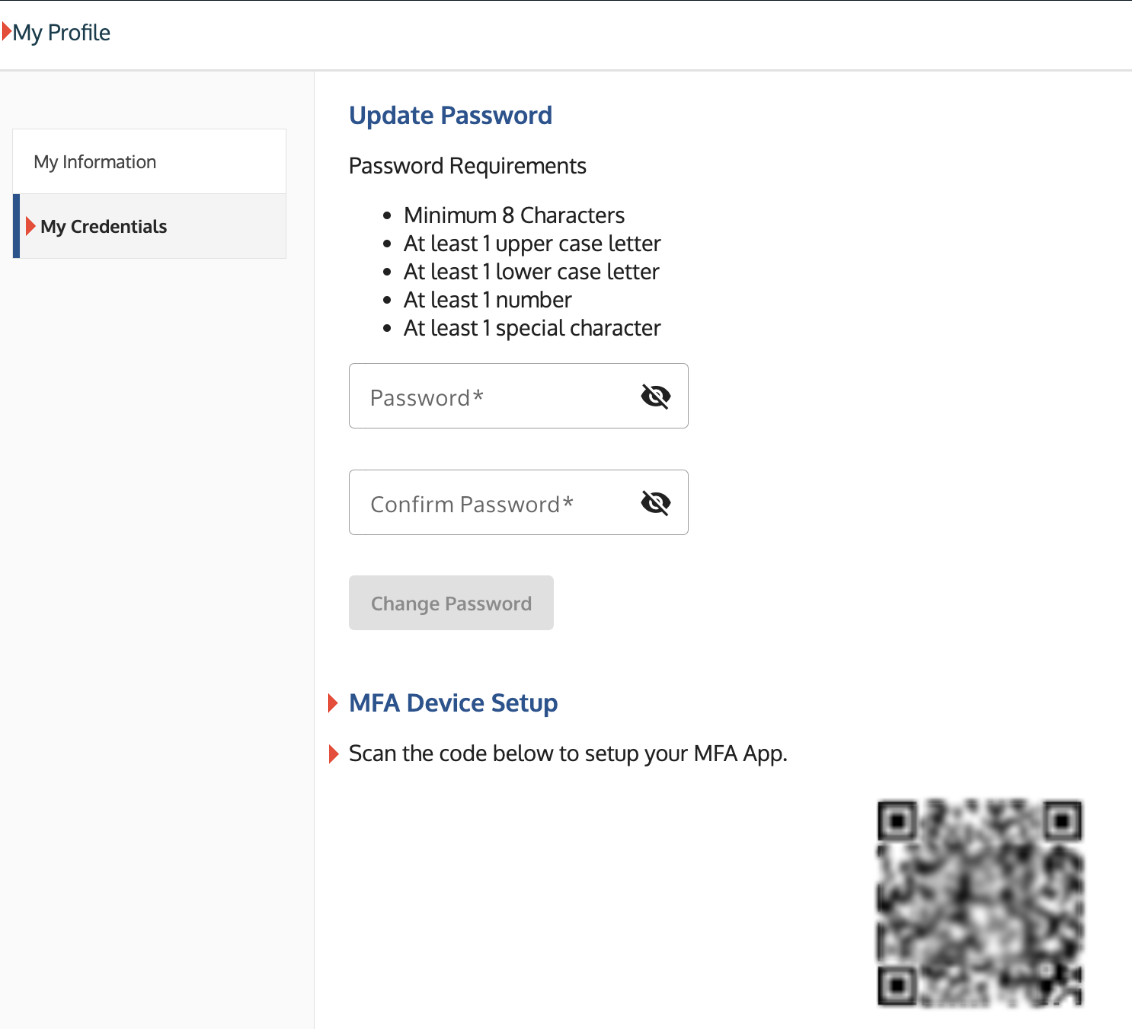
- Set up your Multi-Factor Authentication (MFA) right away.
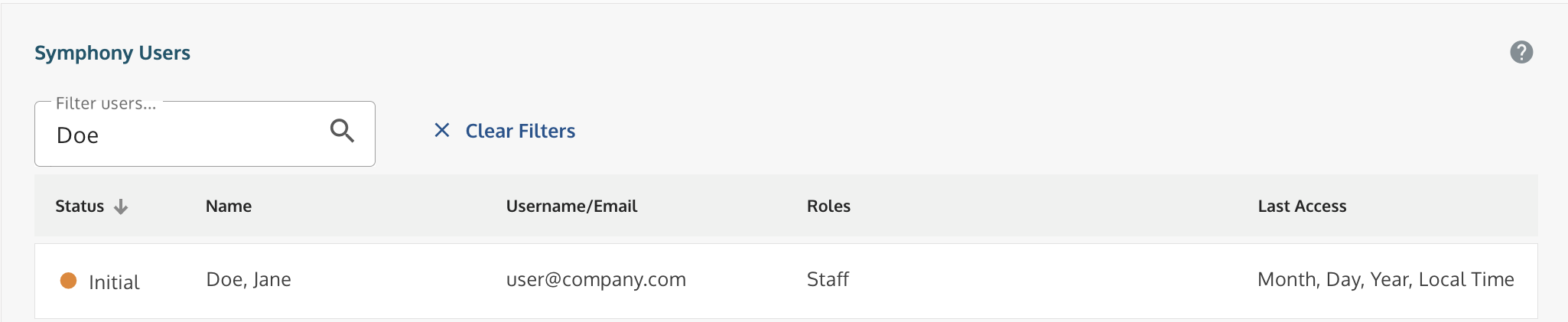
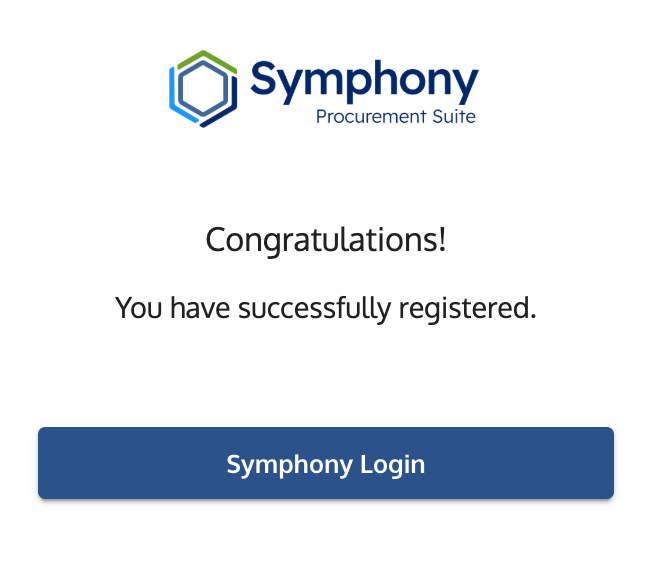
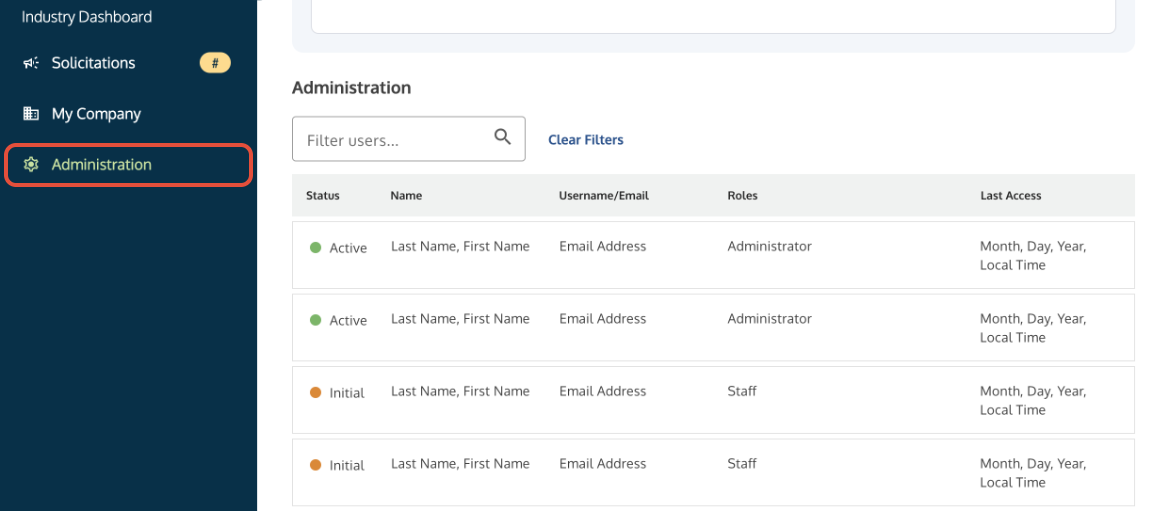
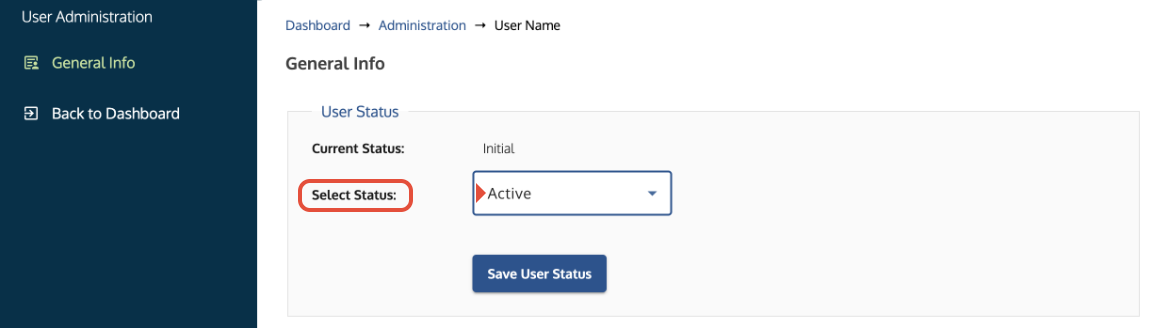
- After you register, your administrator must approve your account before activation.

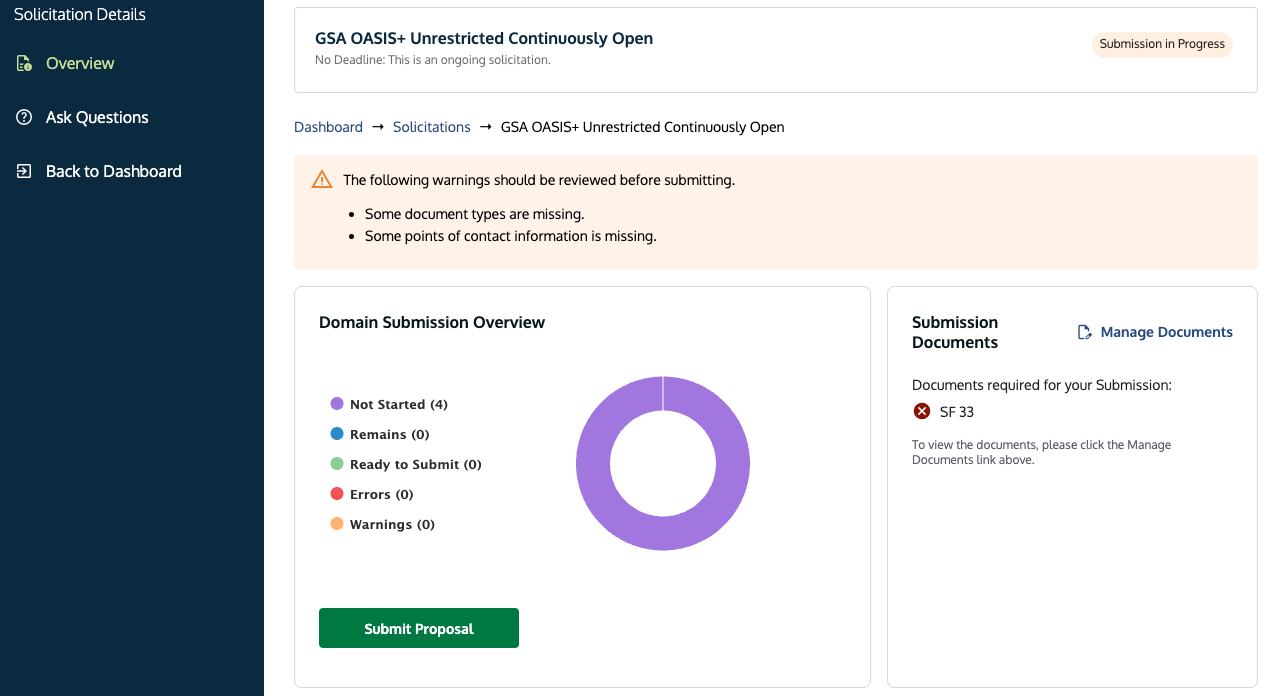
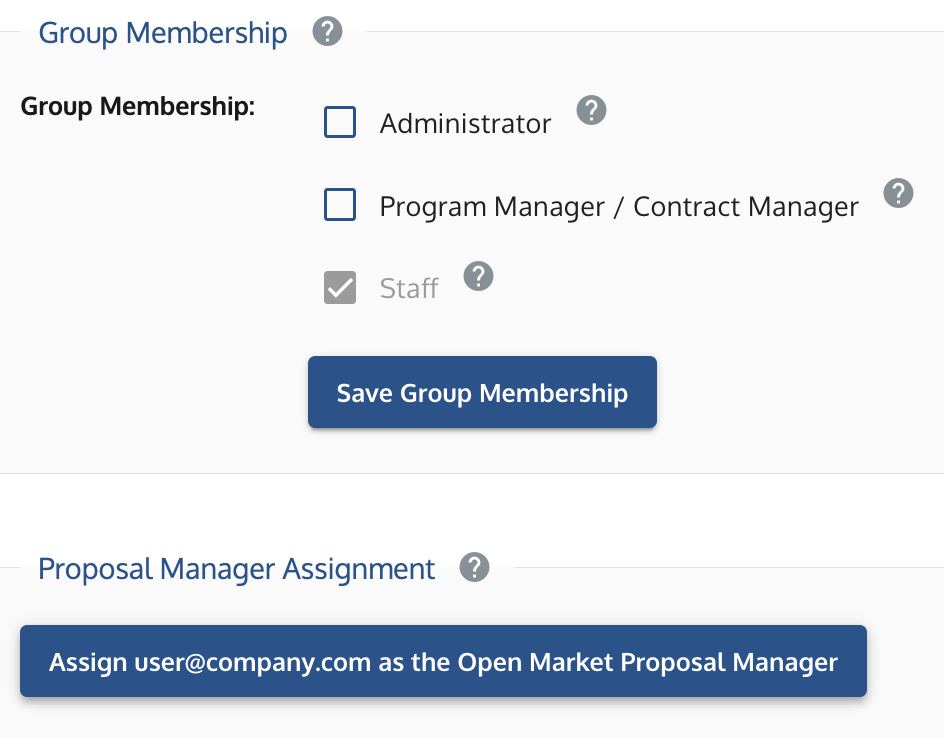
Diagram illustrating the Symphony access process: registration → MFA setup → activation.
3. Start Your Workflow
Once your account is active, use this workflow to find the guides you need. These cover your day-to-day tasks, such as building assets or submitting proposals.
- If you are preparing a bid (Offeror):
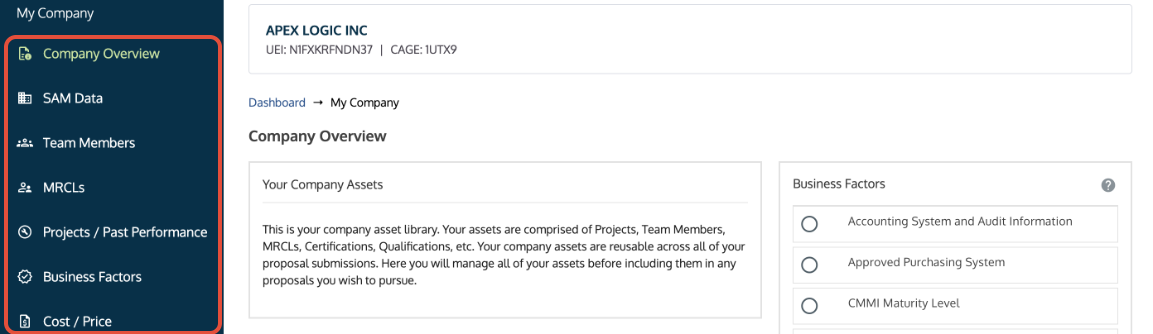
- Start by setting up your company assets: Use the My Company Component.
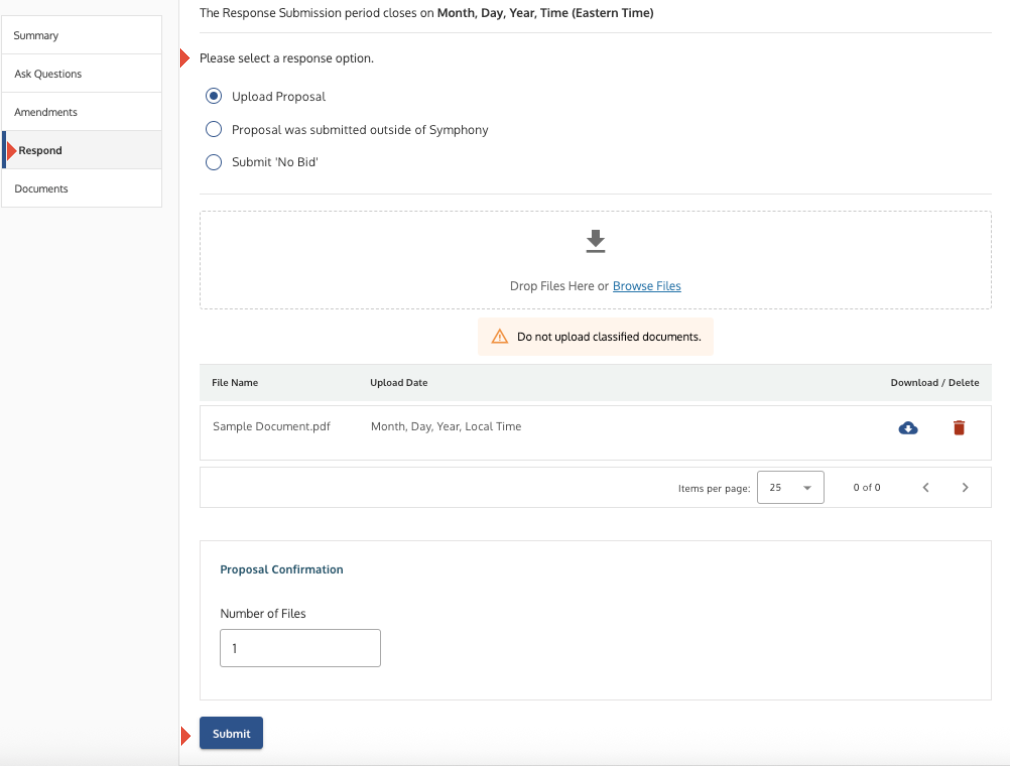
- Review the final bidding process: Assemble and Submit Your Proposal.
- If you are a Contract Holder (Post-Award):
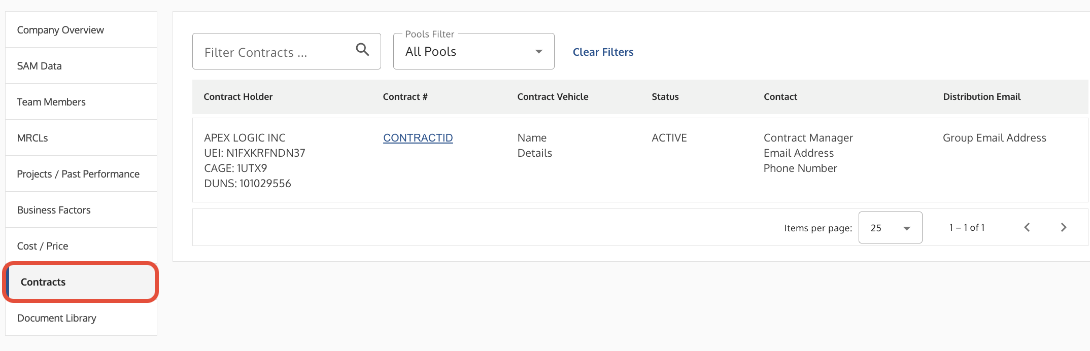
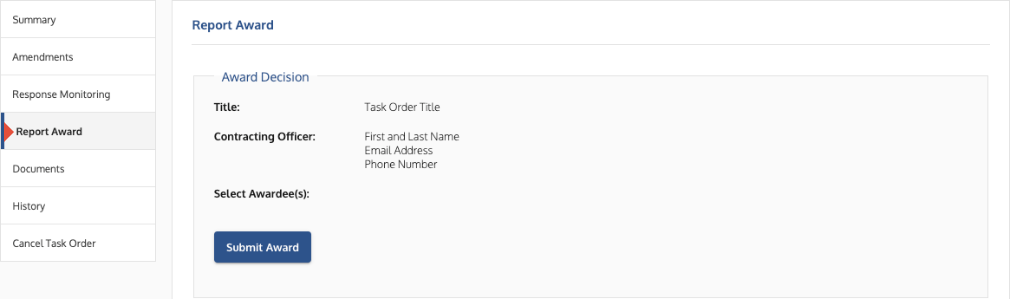
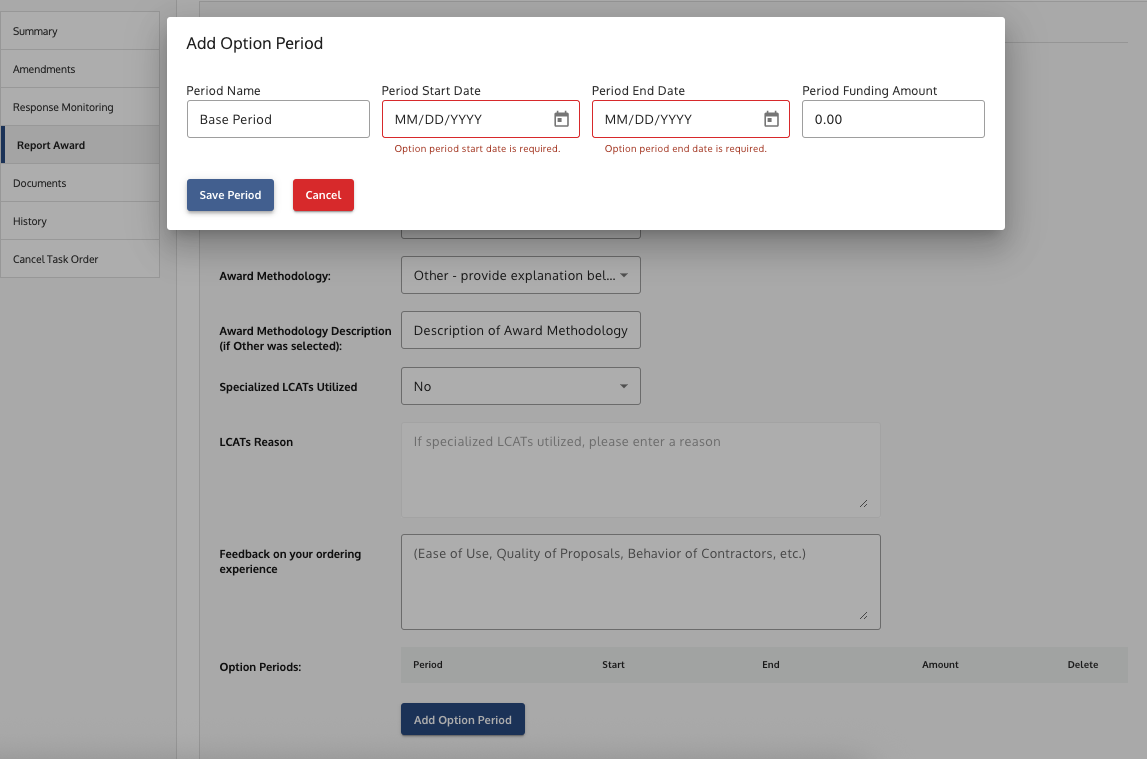
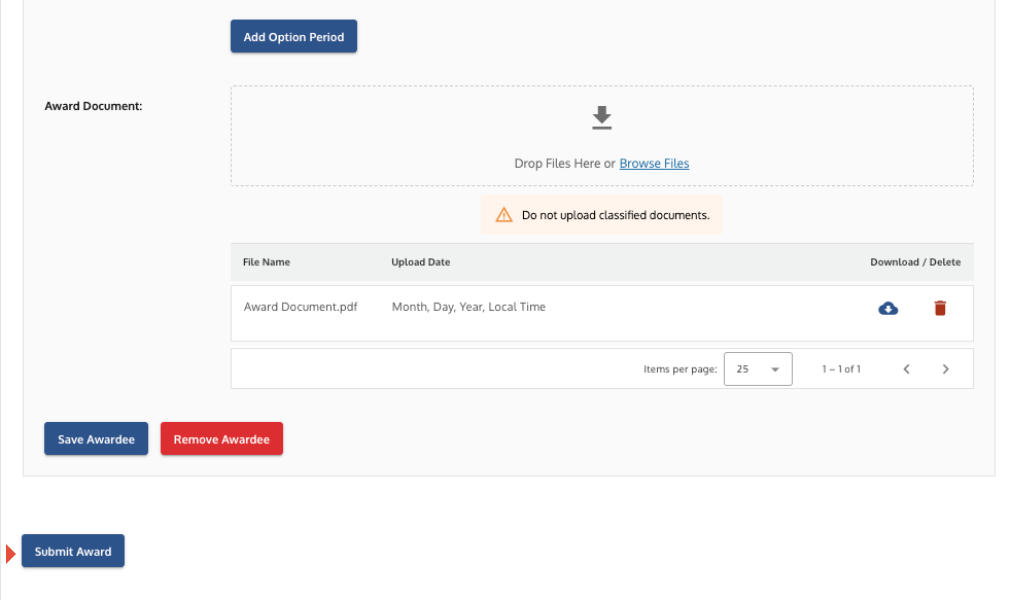
- Monitor tasks and manage your contract: Manage Your Awarded Contract.
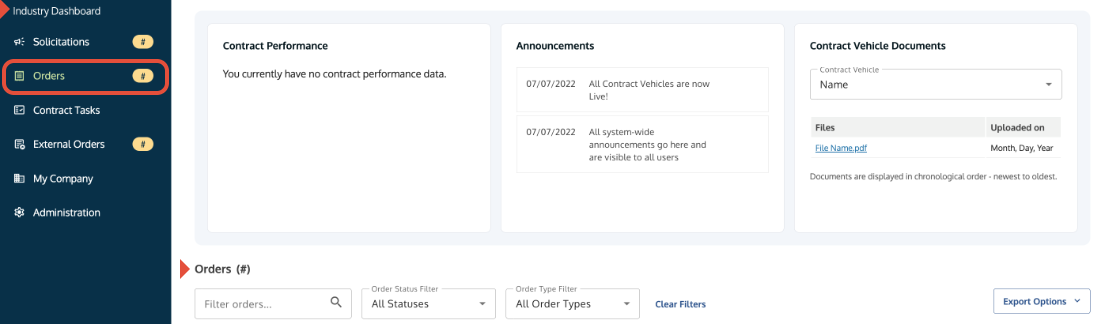
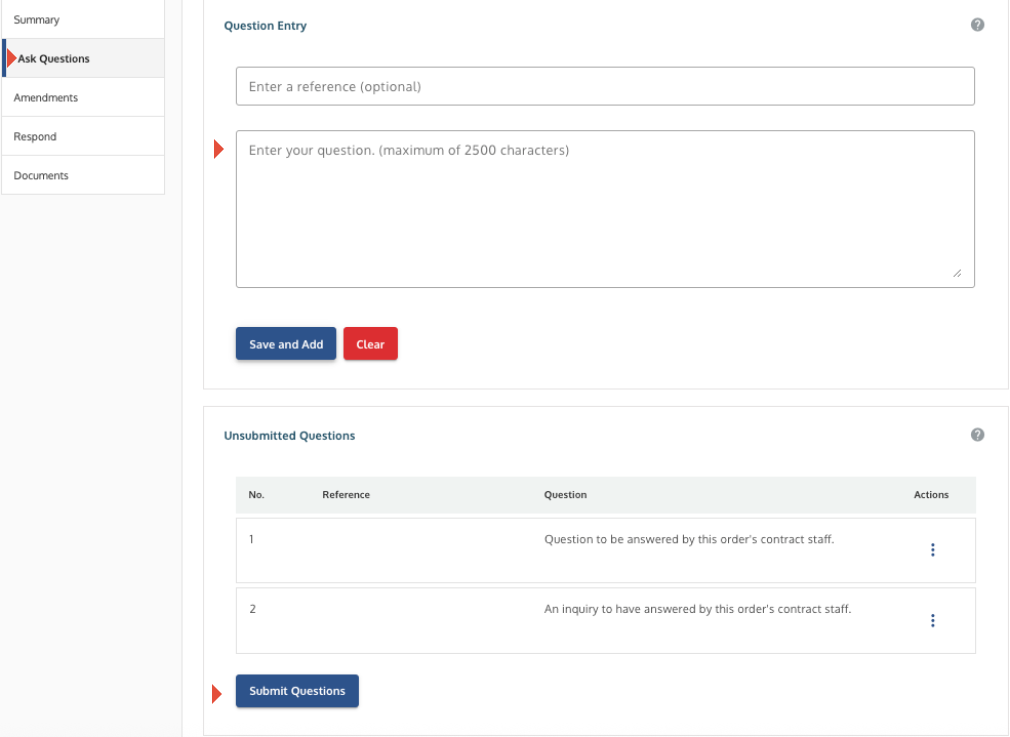
- Track active opportunities: Manage Orders, Q&A, and Bids (Contract Holders).
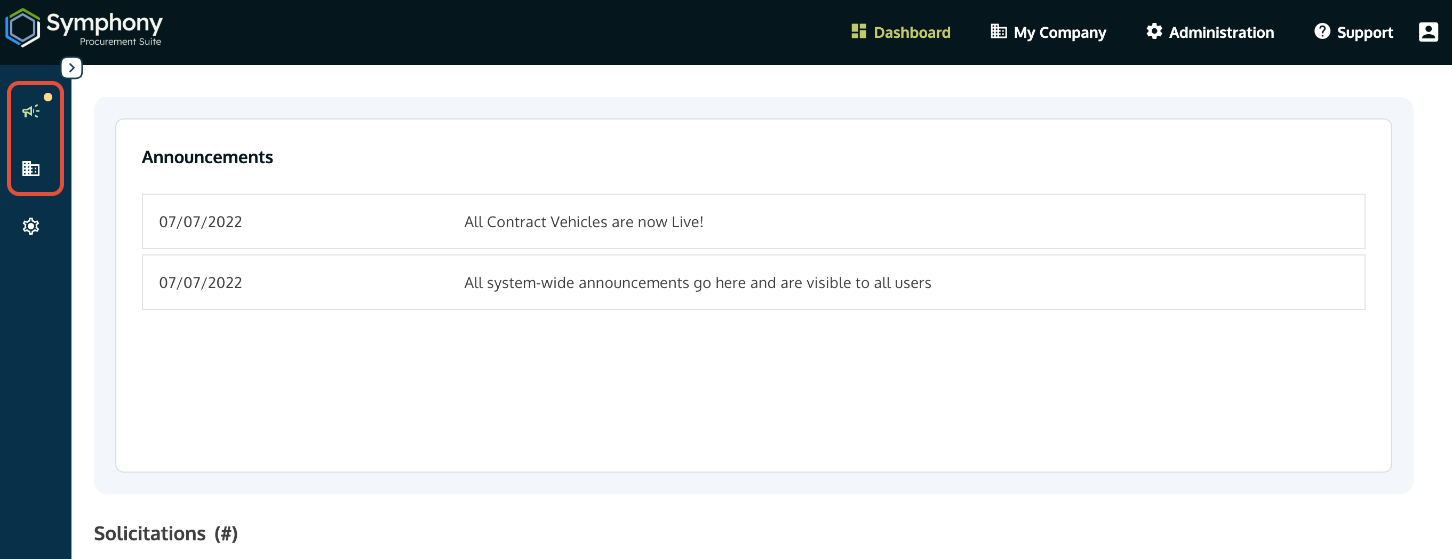
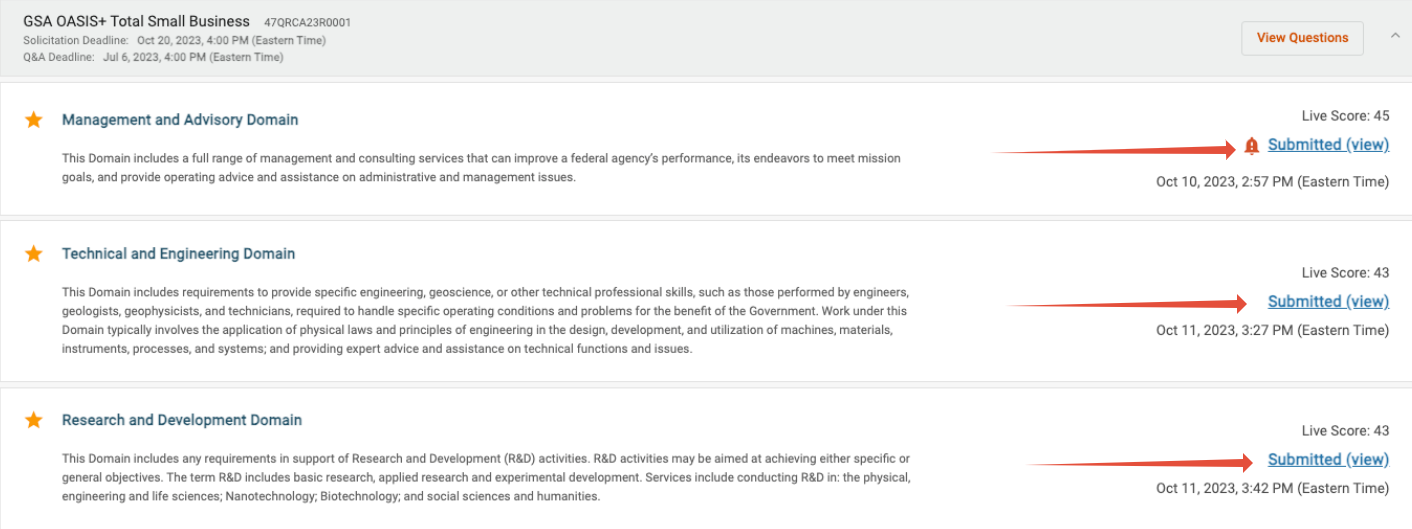
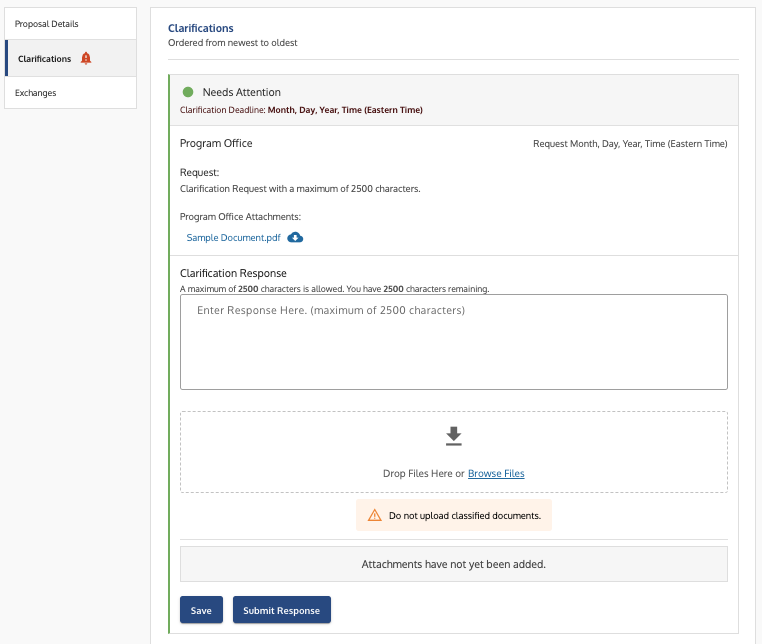
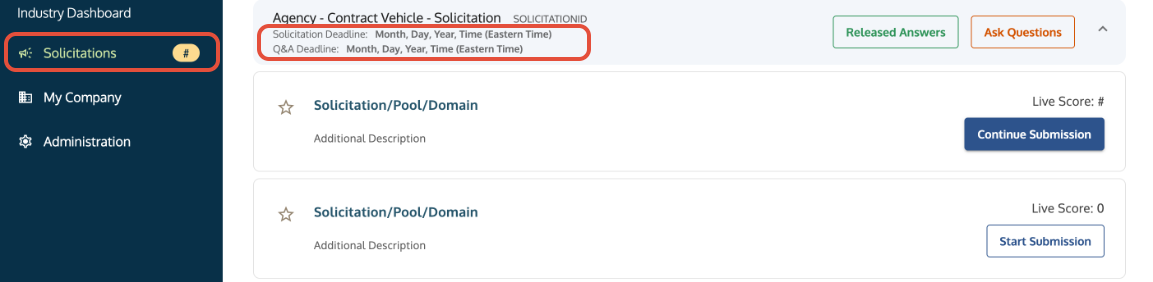
Dashboard with the My Company and Solicitations icons highlighted for navigation.
Troubleshooting
| Issue | Fix |
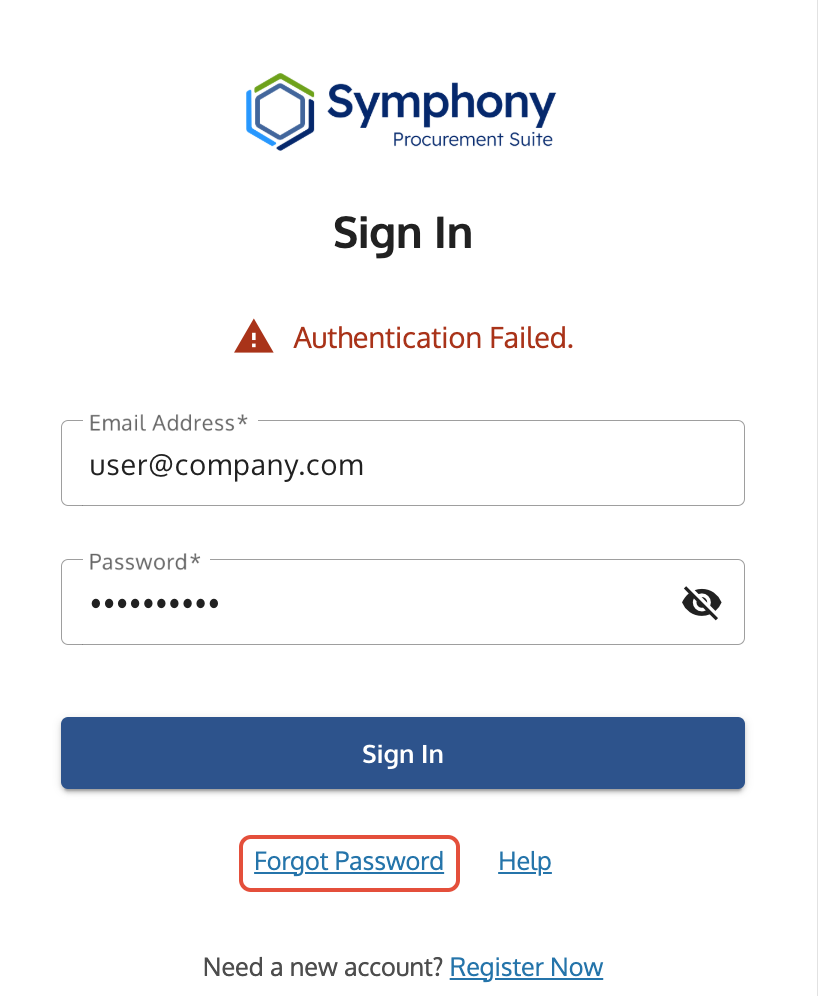
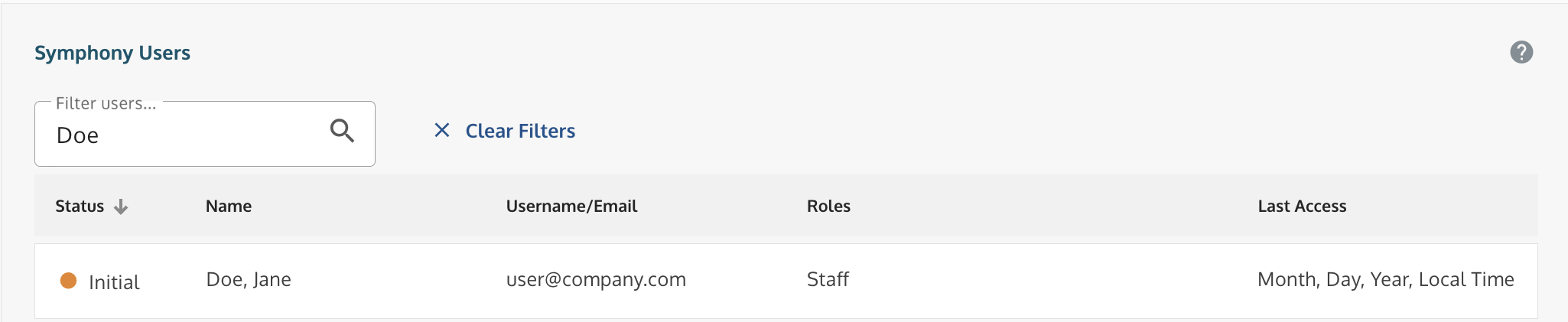
| Account Inactive after registration. | Contact your company's Symphony Administrator. Ask them to change your status from Initial to Active. Note: If you are the Administrator/SAM POC, submit a ticket to the Help Desk with your SAM documentation. |
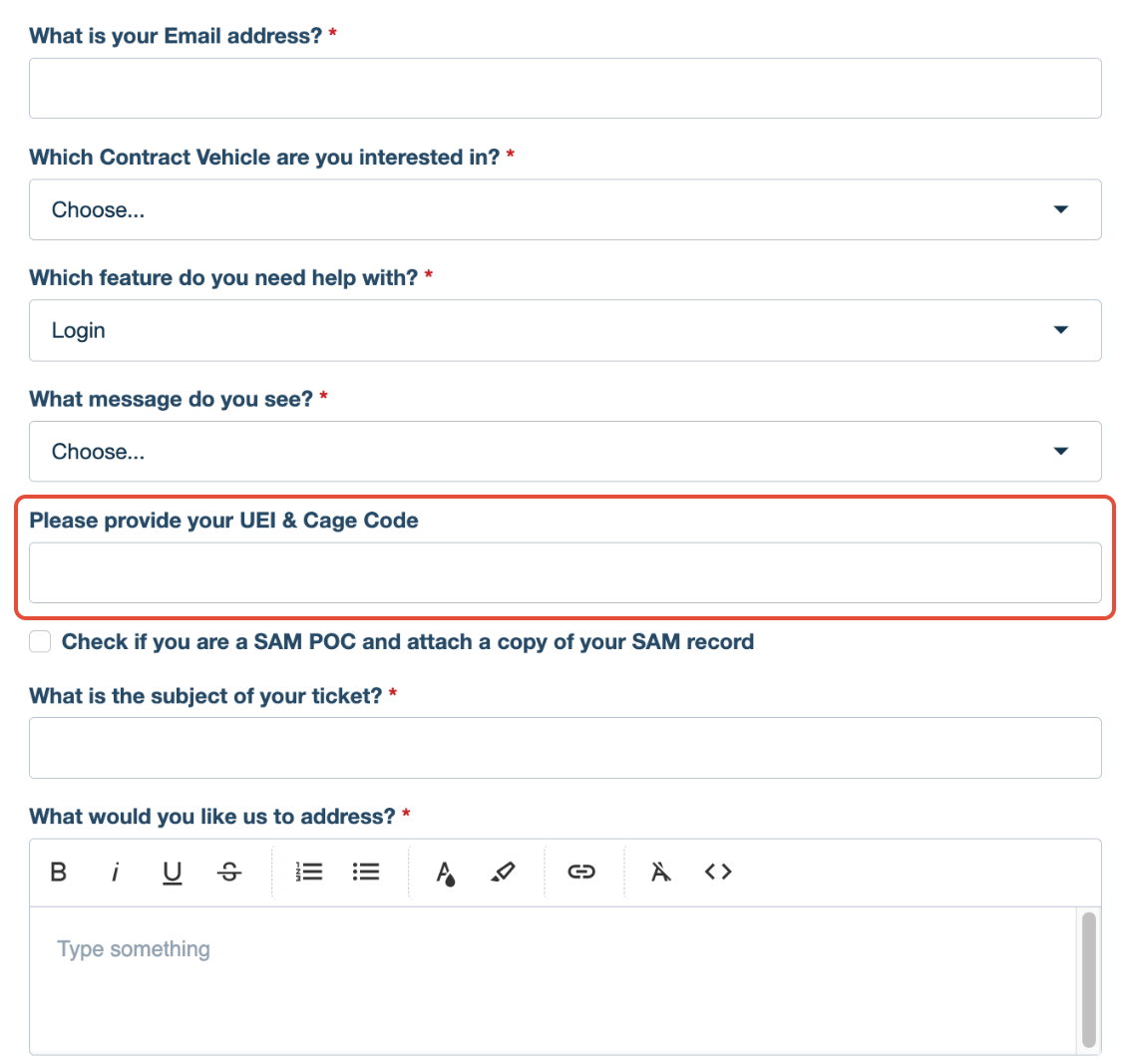
| MFA code is not working or I lost my phone. | See the Set Up and Use Multi-Factor Authentication (MFA) guide for troubleshooting, or Submit a Ticket to the Symphony Help Desk (for lockouts). |
| I cannot find my contracts or company assets. | Check your registration was on the correct Contract Vehicle website (URL) and that your company's UEI is correct. |
Related Articles / Links
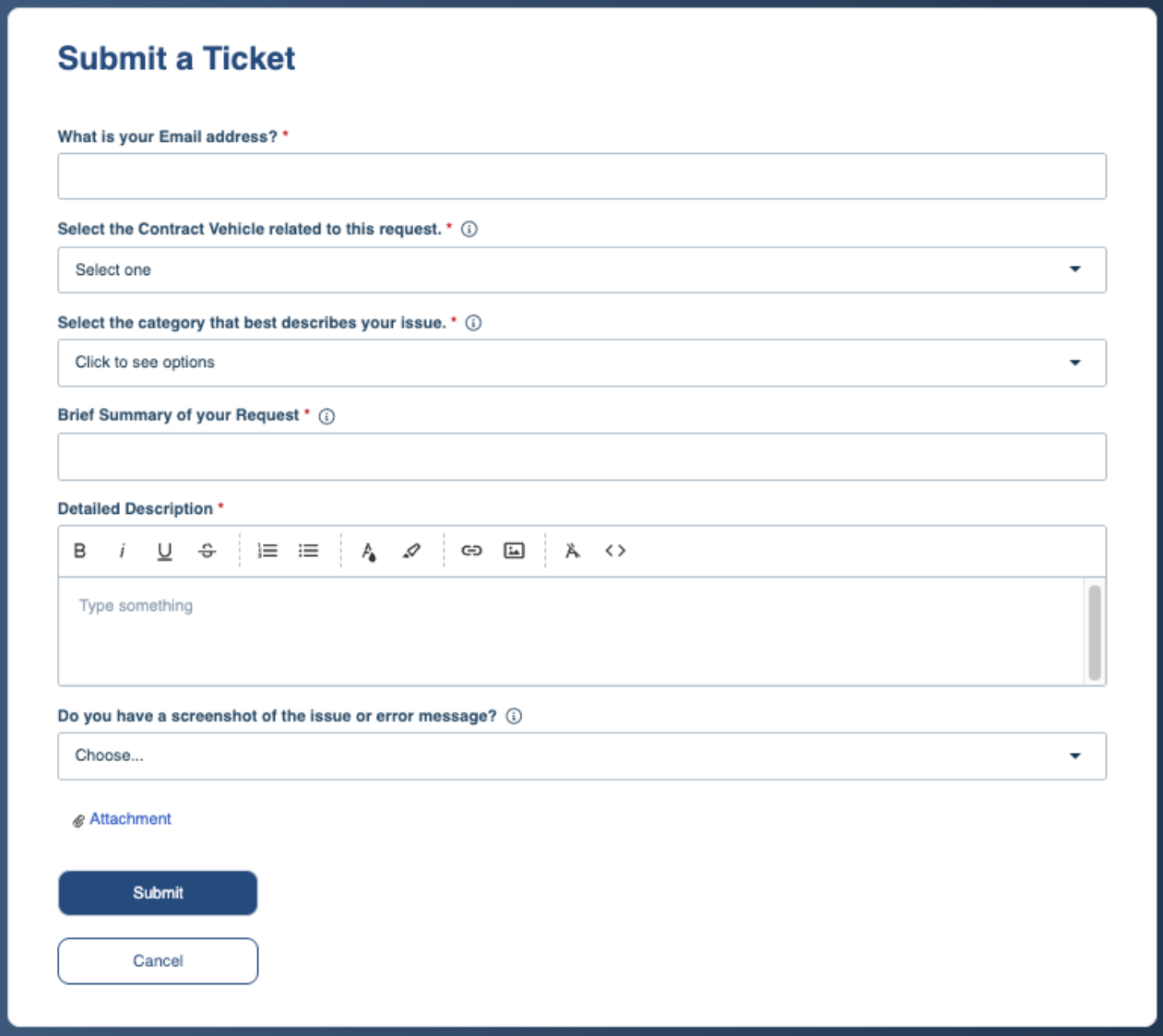
- Submit a Ticket to the Symphony Help Desk—General Support
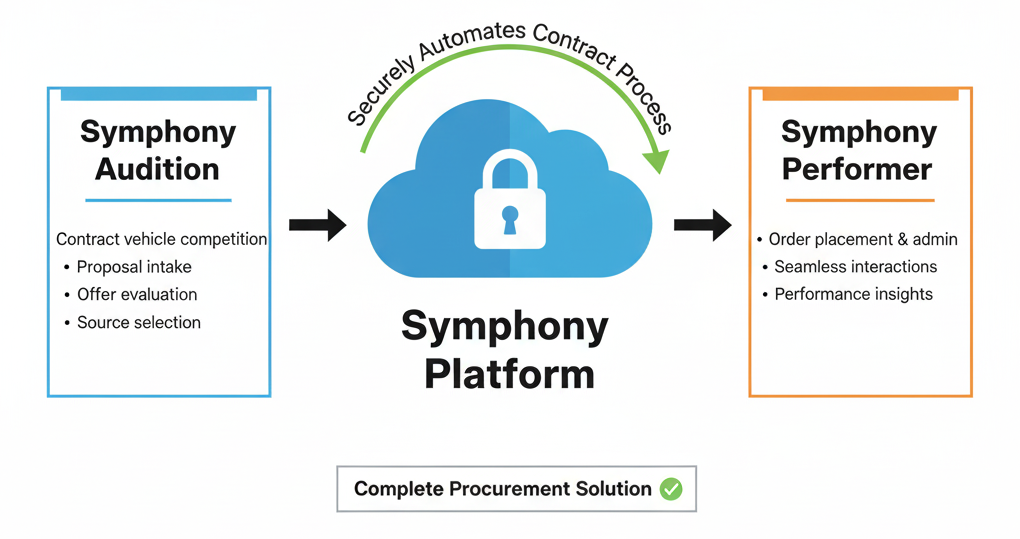
- Discover the Symphony Platform and Developer—Platform Context
- Assemble and Submit Your Proposal—Industry Partner's main workflow
- Manage Your Awarded Contract—Contract Holder's main workflow
Definition of Terms
| Term | Definition |
| SAM Data | System for Award Management (SAM). The official U.S. Government system that consolidates information previously found in multiple places. Required for any entity to do business with the Federal Government. |
| UEI | Unique Entity Identifier. The alphanumeric code required for all entities registering in SAM.gov. |
| CAGE code | Commercial and Government Entity code. A five-character alphanumeric code used to identify a facility at a specific location. |
| POCs | Points of Contact. Individuals within your organization who are authorized to act on behalf of the company for contract-related matters (e.g., electronic business, past performance). |
| URL | Uniform Resource Locator. The address of a World Wide Web page (i.e., the specific website link). |
| OASIS+ | One Acquisition Solution for Integrated Services Plus. A specific, large-scale professional services contract vehicle managed by the GSA (General Services Administration). |

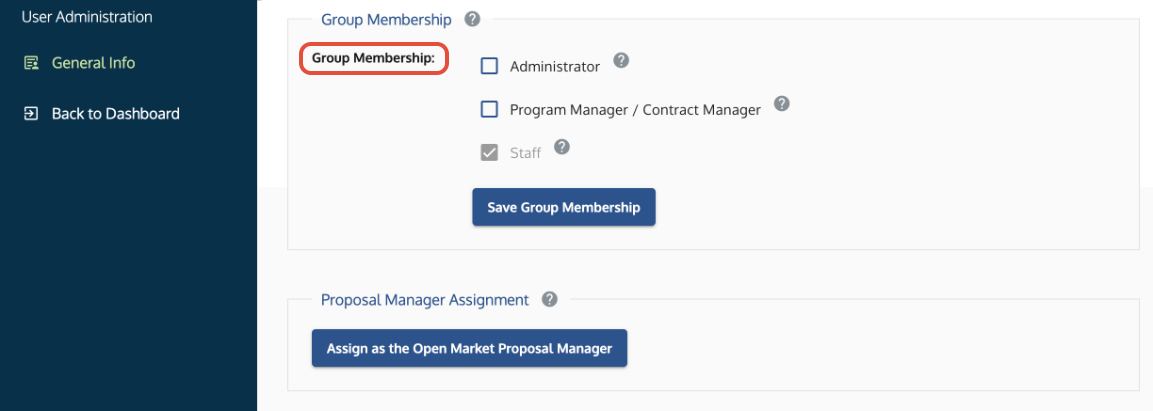

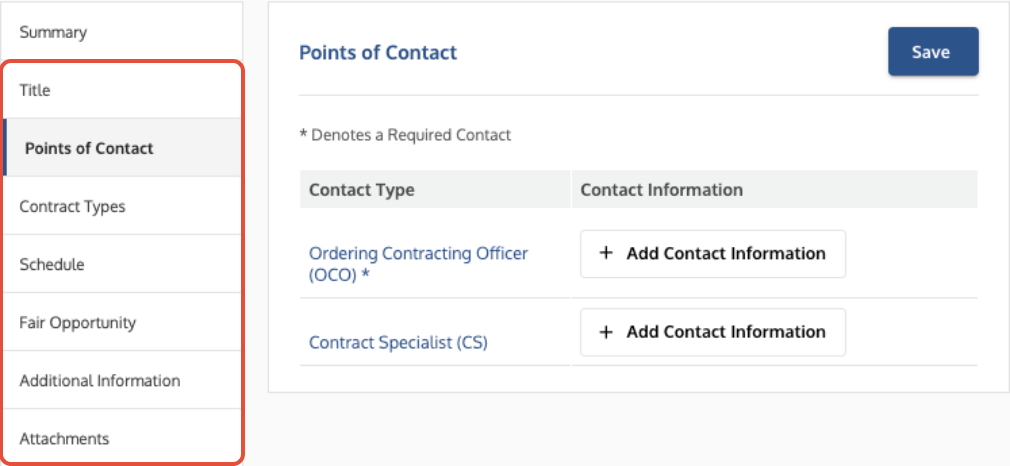

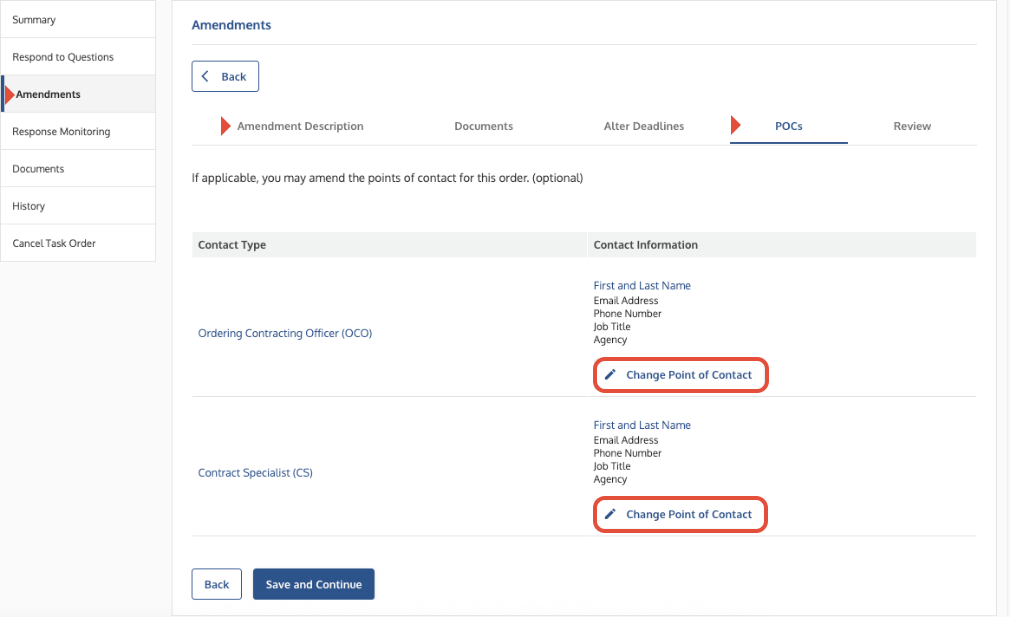
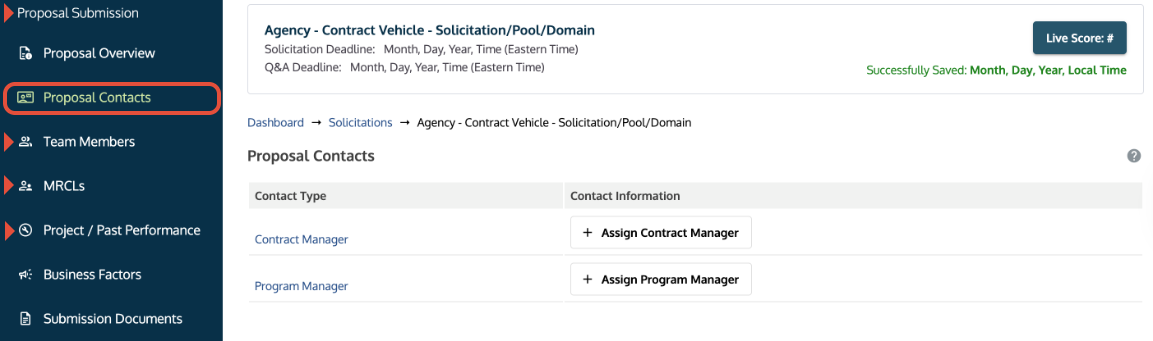

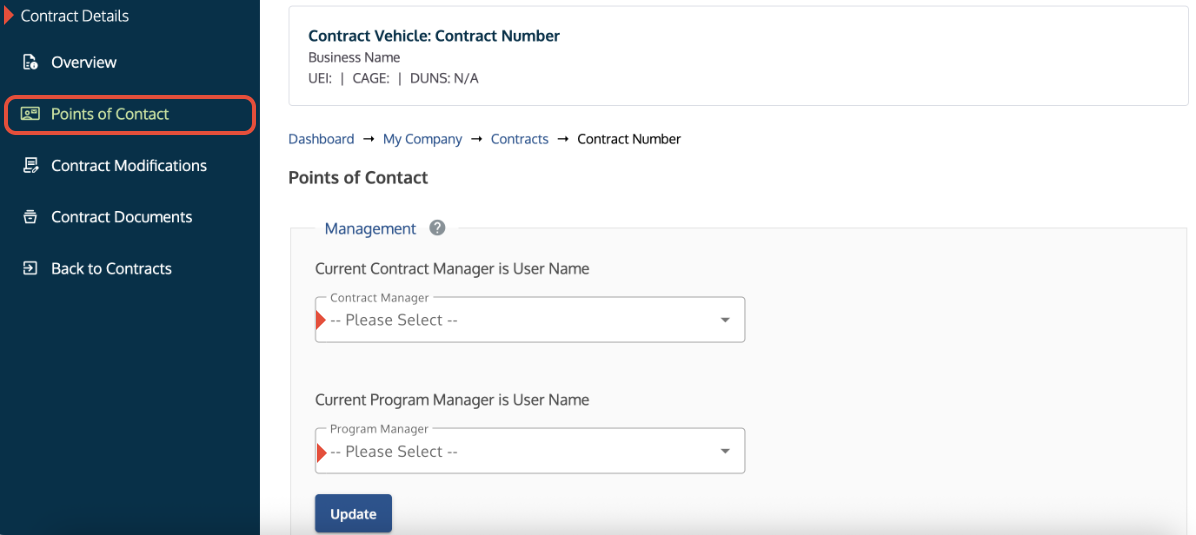

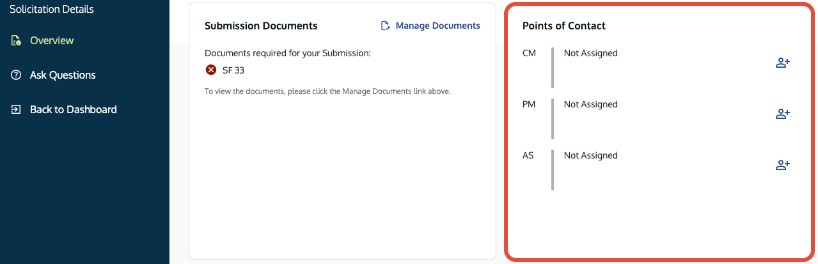
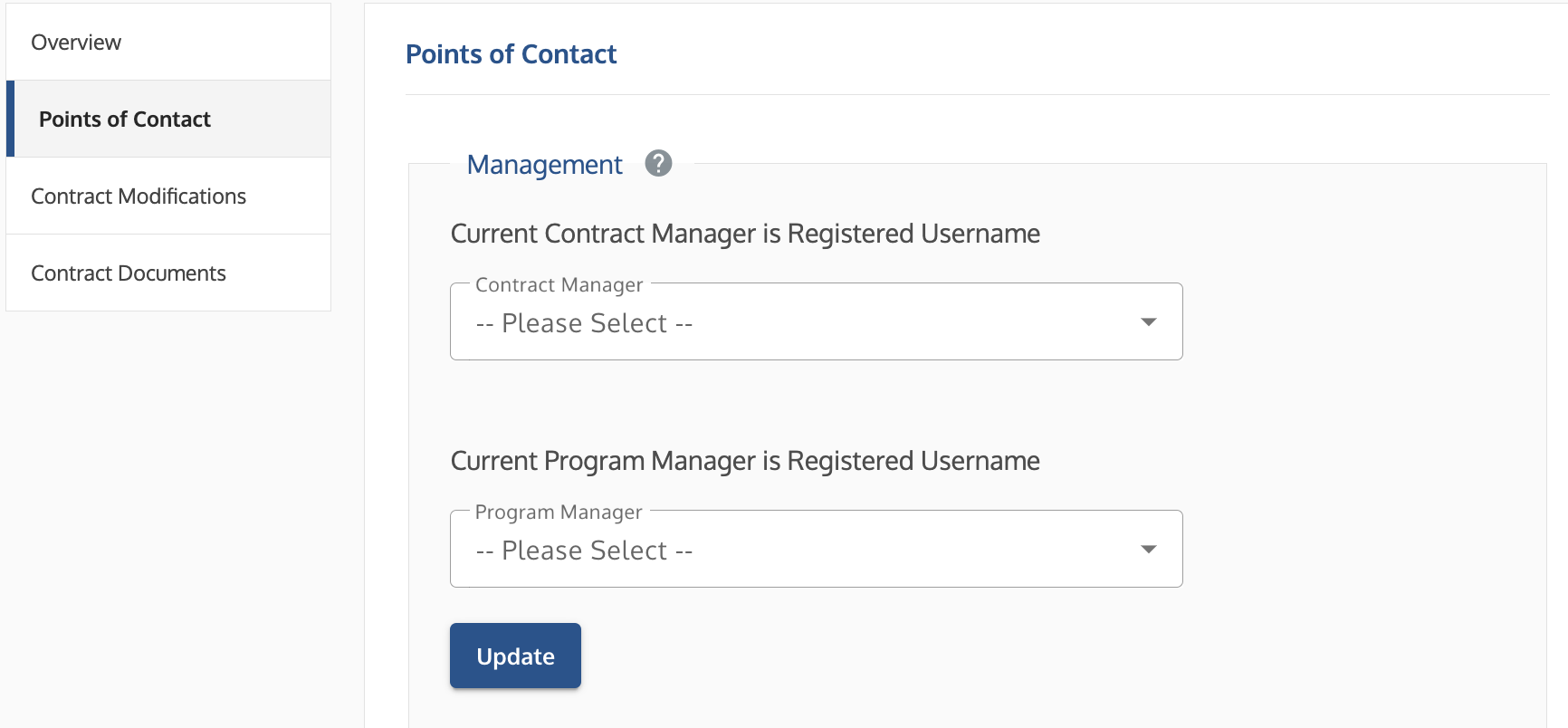
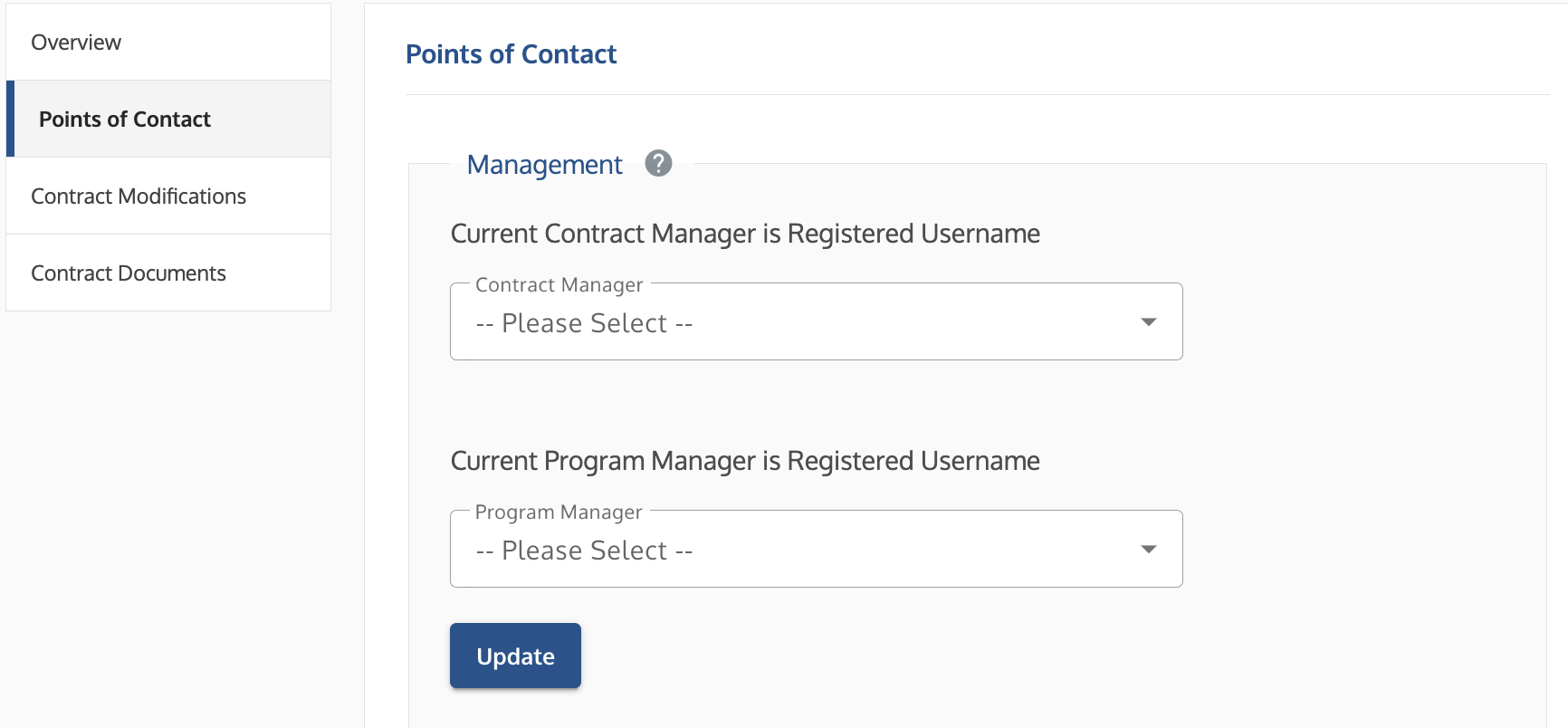 Points of Contact screen showing dropdown menus for assigning Contract Manager and Program Manager roles.
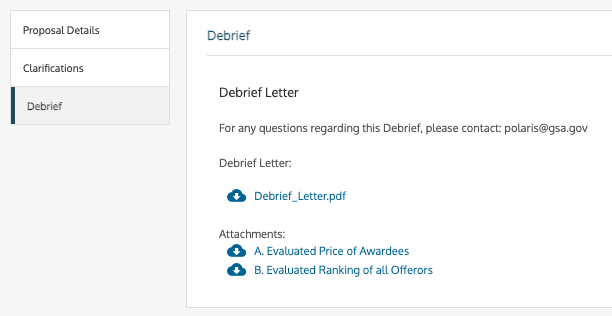
 Contract Modifications tab showing the option to start a modification.